
Create Application
Overview
An Application is the foundational unit for managing API Keys and usage on the Wuliang Open AI platform. Each application is an isolated container used to:
- Create and manage a group of API Keys
- Track API call usage and spend under the application
- Isolate and aggregate request logs per application
Create separate applications per business scenario — for example, a Customer Support Chatbot and a Content Generation Tool — to simplify management and cost accounting.
Prerequisites
- A registered Wuliang Open AI account
- Logged in to the console
Steps
Create a new application
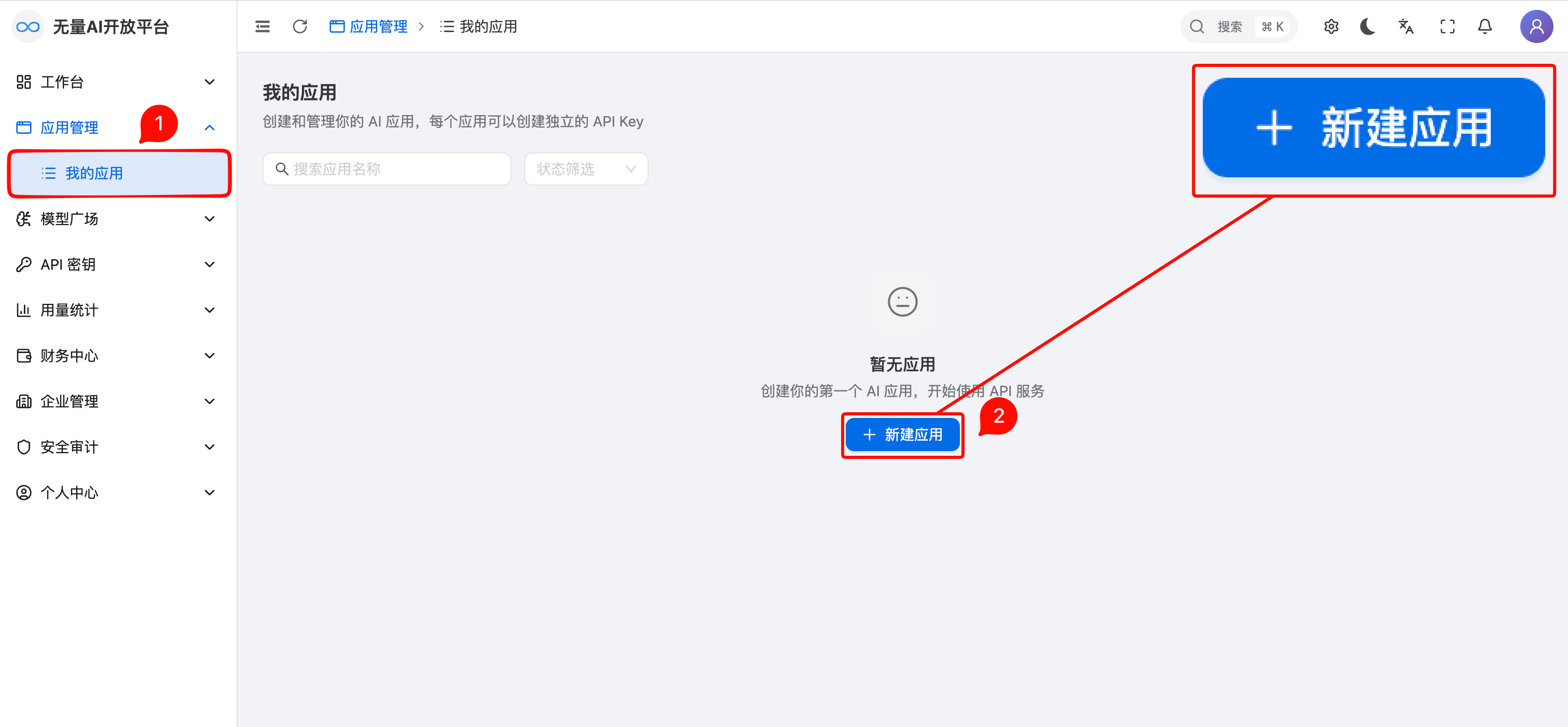
In the left sidebar, click Applications → My Applications to open the app list page.
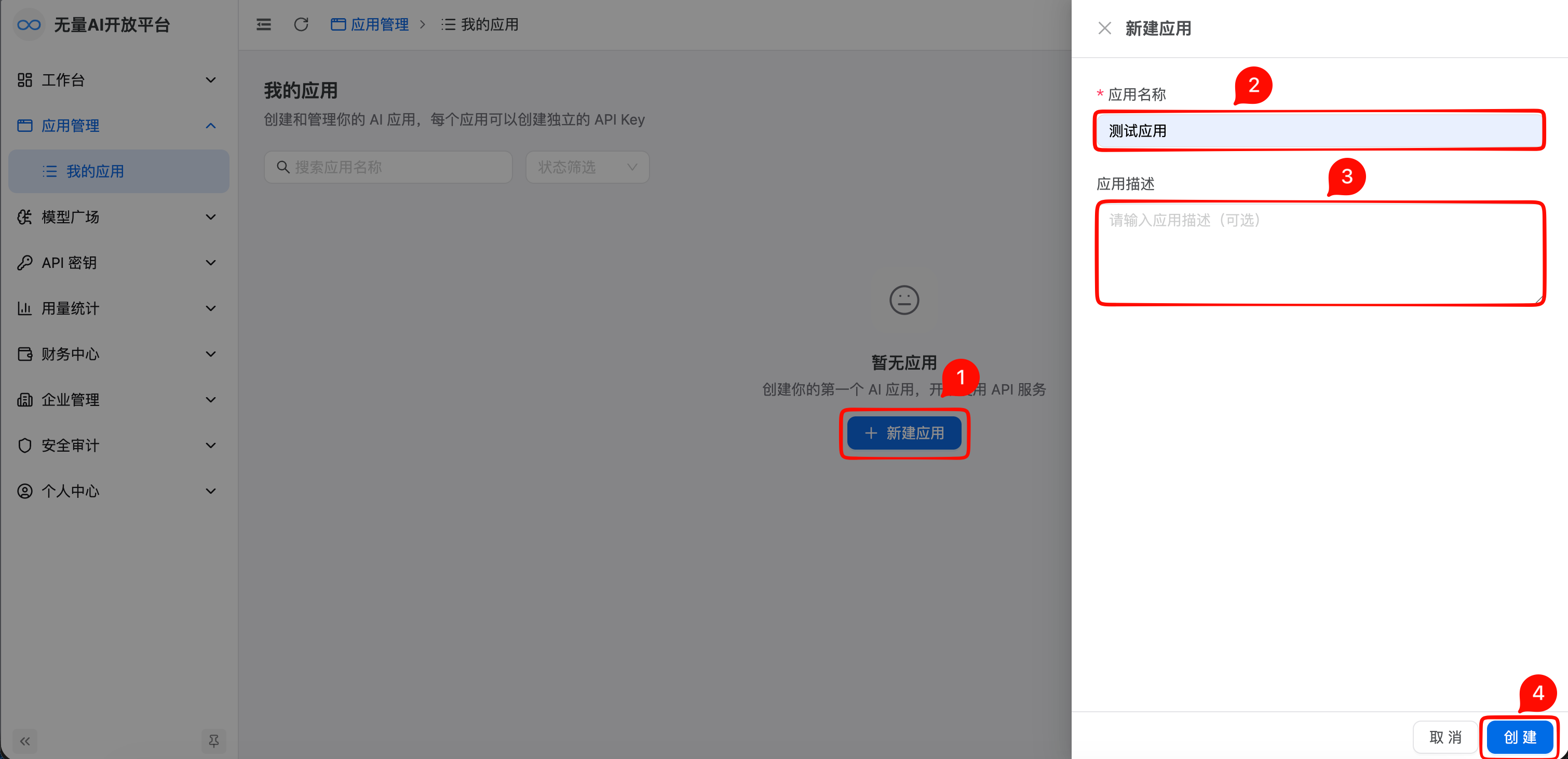
On the app list page, click the Create App button in the upper-right corner.
In the Create App dialog, fill in the following fields:
- App Name (required): a recognizable name such as
Customer Support System, 2–50 characters. - Description (optional): a brief summary of the app's purpose, useful for later management and team collaboration, up to 200 characters.
- App Name (required): a recognizable name such as
After confirming the information, click OK to finish.
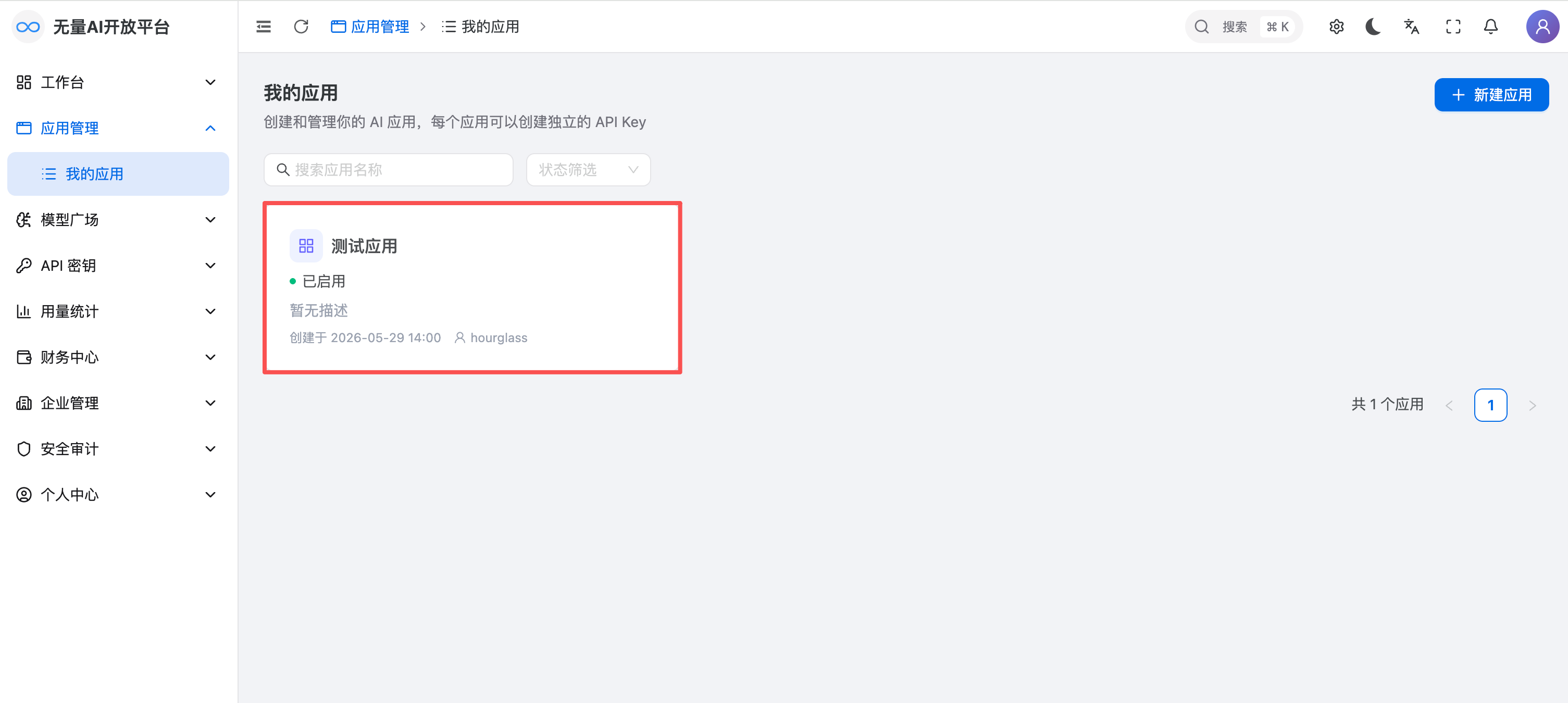
Once created, the new application appears in the list with the default status Enabled.
Manage application status
Enable / Disable
In the app list, find the target application and click the toggle in the Status column.
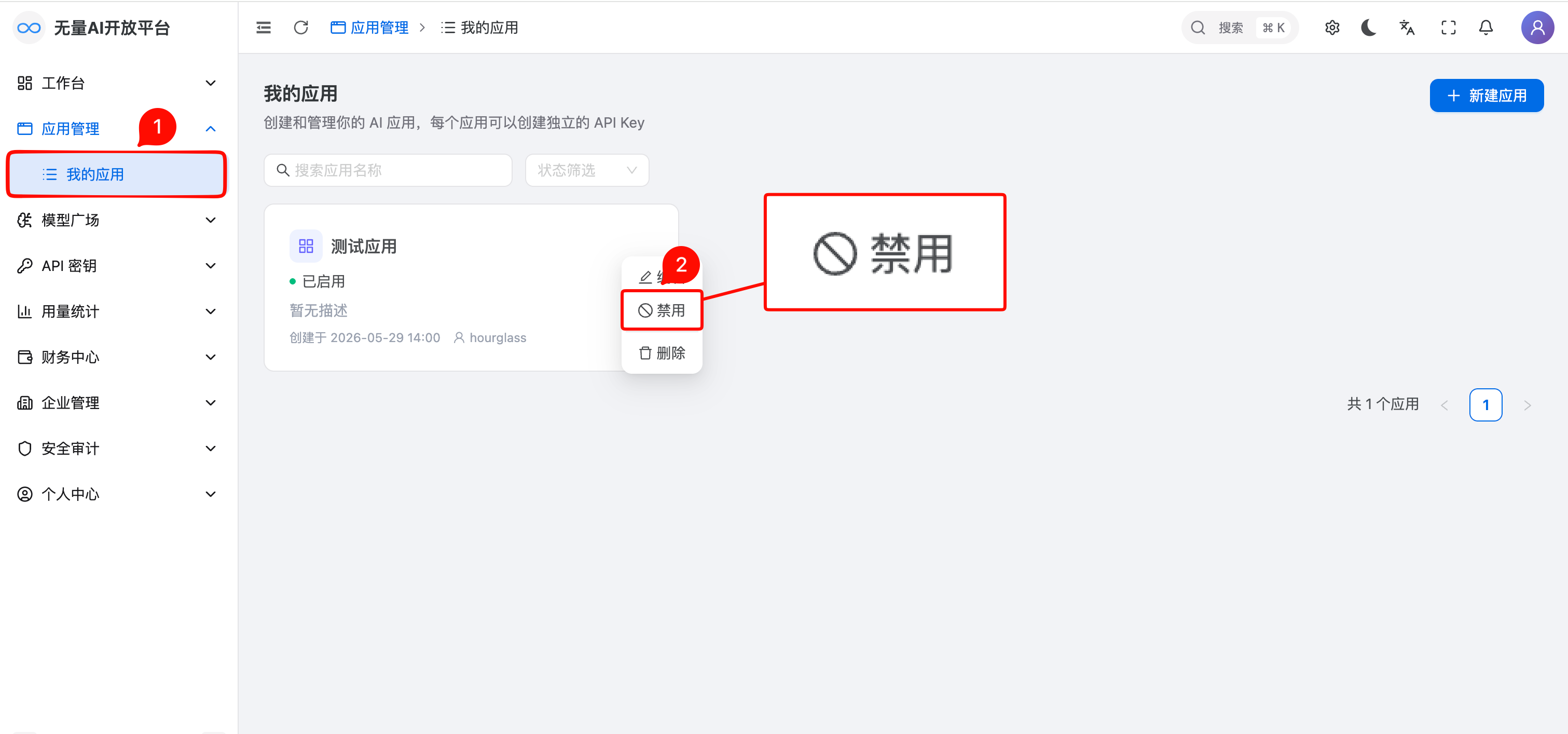
Once disabled, all API Keys under the application become unusable until it is re-enabled.
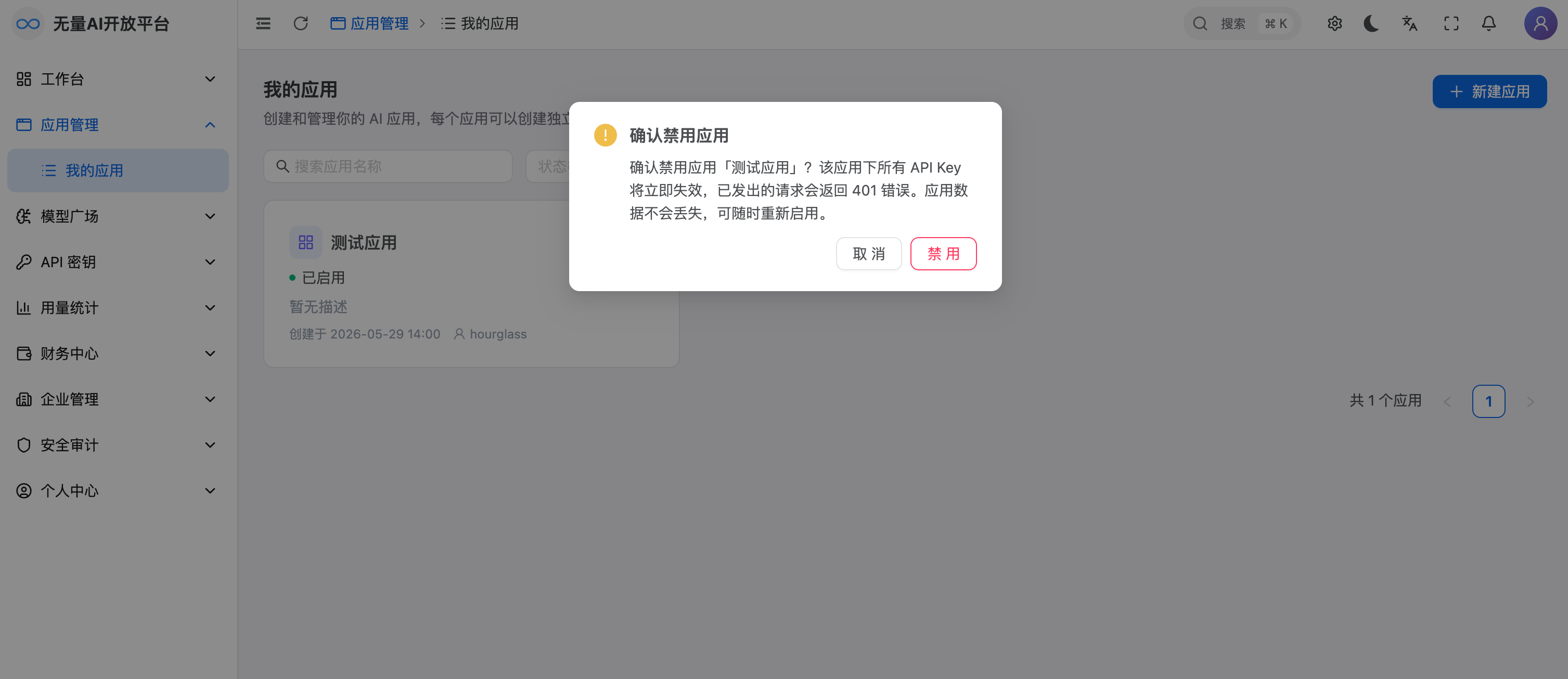
Disabling an application does not delete it or its API Keys — it only suspends the call permissions of all keys under it.
Delete
In the app list, find the target application and click the Delete button in the Actions column.
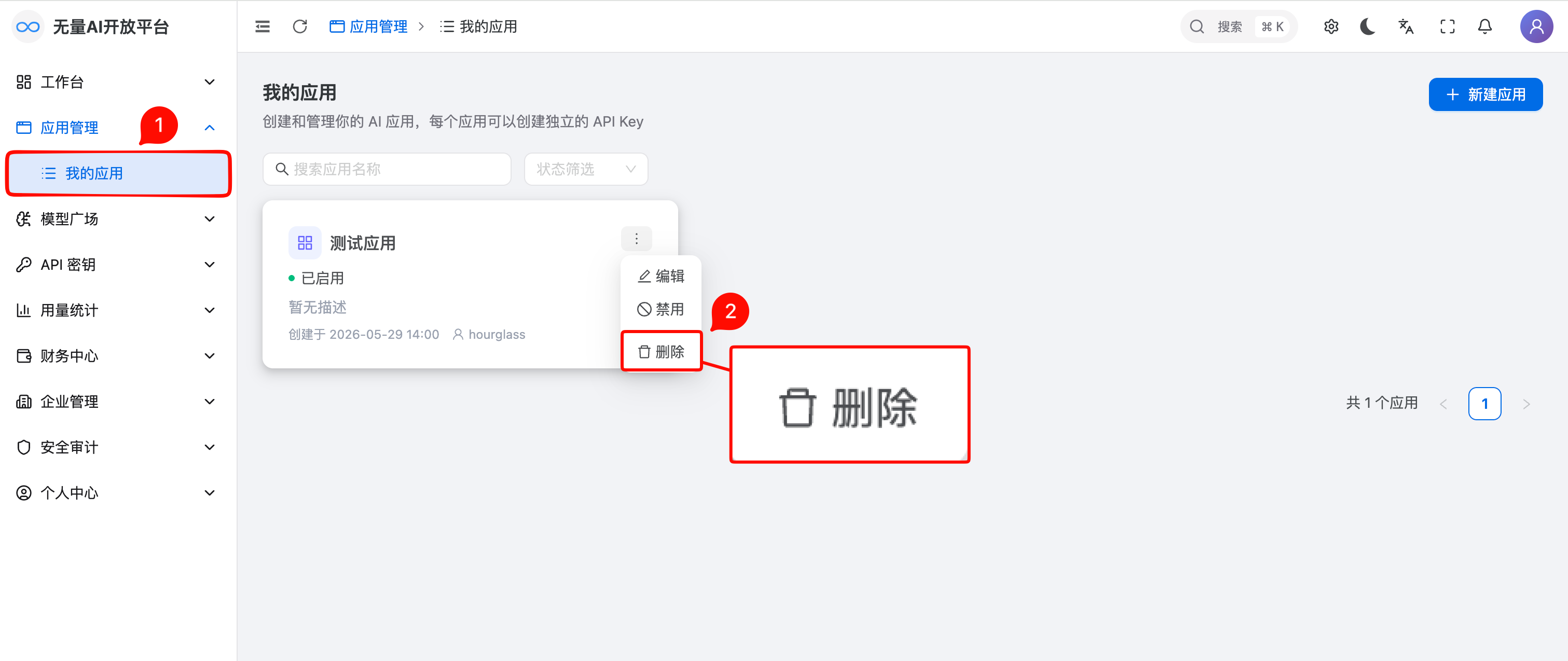
In the confirmation dialog, type the application name to confirm — this prevents accidental deletion.
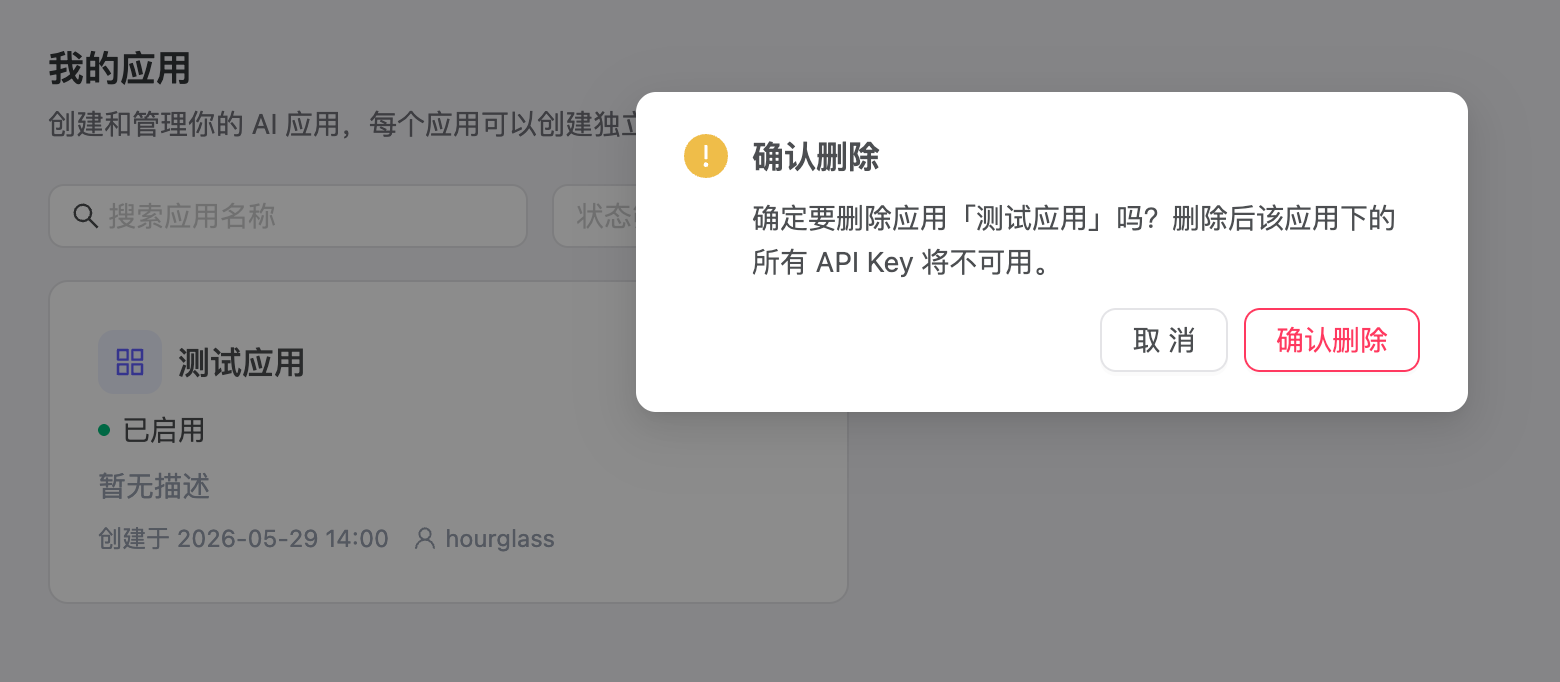
Deletion also removes all API Keys under the application and cannot be undone. Proceed with caution.
View basic application info
The app list page shows all applications in a table with the following columns:
| Field | Description |
|---|---|
| App Name | The name you set |
| App ID | A system-assigned unique identifier |
| Status | Enabled / Disabled |
| API Keys | Number of API Keys created under the app |
| Created At | When the application was created |
| Actions | Entry points for editing, deleting, and so on |
Notes
- Application names don't have to be unique across an account, but using distinguishable names is recommended for easier management.
- Disabling an application takes effect immediately; in-flight requests are not affected, but new requests will be rejected.
- Deletion is irreversible. All API Keys, usage data, and request logs tied to the application are permanently removed.
- Each account has a quota on the number of applications. Contact support if you need the limit raised.
- Create separate applications per business scenario to make usage tracking and cost management easier.
Related Documentation
- Application Detail — explore the full app detail page
- Manage API Keys — create and manage API Keys under an application
- Request Logs — view API request logs grouped by application